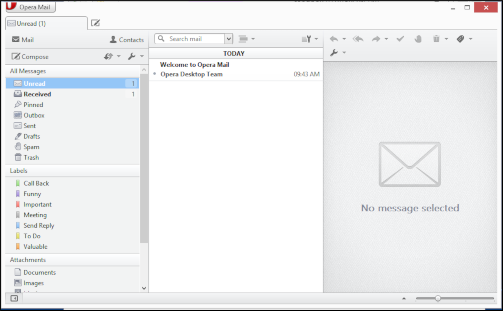
This article demonstrates how to set up Opera Mail to access an techseri e-mail account and send messages.
To configure Opera Mail to work with your techseri e-mail account, follow these steps:
- Make sure you have already created at least one e-mail account for your domain. If you have not done this, please see this article to learn how to create an e-mail account using cPanel.
- Start Opera Mail.
- If you are running Opera Mail for the first time, the New Account Wizard dialog box appears automatically. Otherwise, click Opera Mail in the top-left corner of the application window, click , and then click to start the New Account Wizard.
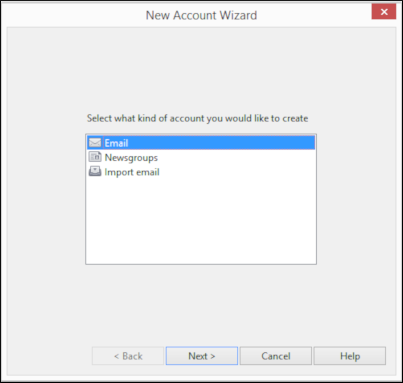
- Select Email, and then click :
-
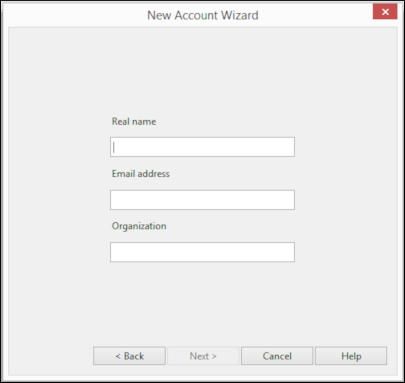
In the Real name text box, type the name that you want to appear on messages you send:
-
In the Email address text box, type the e-mail address of the account you created in cPanel, and then click .
You can optionally specify an organization in the Organization text box. -
In the Login name text box, type the e-mail address of the account you created in cPanel:
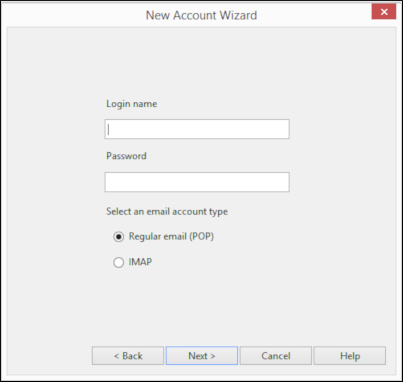
- In the Password text box, type the password for the e-mail account you created in cPanel.
-
Select the type of incoming mail server that you want to use:
- If you want to use POP, select Regular email (POP).
- If you want to use IMAP, select IMAP.
- Click .
-
In the Incoming server text box, type the techseri server name for your account, followed by one of the following:
- If you want to use POP, add :995 to the server name.
- If you want to use IMAP, add :993 to the server name.
For example, if your techseri server name is a2s87.techseri.com and you want to use IMAP, type a2s87.techseri.com:993.
For information about how to determine your account's server name, please see this article.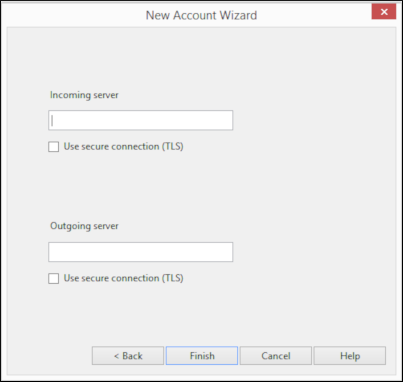
- Select the Use secure connection (TLS) check box.
-
In the Outgoing server text box, type the techseri server name for your account, followed by :465. For example, if your techseri server name is a2s87.techseri.com, type a2s87.techseri.com:465.
For information about how to determine your account's server name, please see this article. - Select the Use secure connection (TLS) check box.
-
Click . Opera Mail displays the inbox and downloads any messages in the account: